Showing posts with label commands. Show all posts

Sunday, April 4, 2010

How-to: a simple guide to Ameba Pigg commands

Curiosity wins again as I infiltrate Ameba Pigg and learn that you can use the same commands as Pico, but with different words that trigger them. A few words are English, most are Romanji.

Pigg seems to have 3 more commands than Pico. Namely, rock-paper-scissors. And two less. It does not seem to include kissy lips or thumb's up.


Type the following commands into your chat to get some funky results ...

Icons:


/choki
Creates a talk bubble with an animated "scissors" shake hand gesture over your head


/goo
Creates a talk bubble with an animated "rock" shake hand gesture over your head


/par
Creates a talk bubble with an animated "paper" shake hand gesture over your head


/angry
Creates a talk bubble with an animated throbbing "x" over your head


/moya
Creates a talk bubble wit an animated squiggle over your head ("moya" means ...)


/onpu
Creates a talk bubble with animated music note icons over your head ("onpu" means ...)


/heart
Creates a talk bubble with animated heart icons over your head


/hungry
Creates a talk bubble with a knife and fork icon over your head


/hirameki
Creates a talk bubble with an animated light bulb icon over your head ("hirameki" means ...)


/kiss
Creates a talk bubble with animated kissy lips icon over your head


/nekohebi
Creates a talk bubble with an animated cat icon over your head


/panda
Creates a talk bubble with a panda's head icon over your head


/sad
Creates a talk bubble with an animated tear drop icon over your head


/thumb
Creates a talk bubble with thumbs up icon over your head


/zoomin
Enlarges the size of the Pico screen (same as "+" button)

/zoomout
Reduces the interface (same as "-" button)


Avatar Actions:
As with Pico, there are many avatar actions in Pigg. These are the basic/default ones. You may purchase additional ones (e.g. laughing, smiling, clapping, dancing, etc.) in-game.


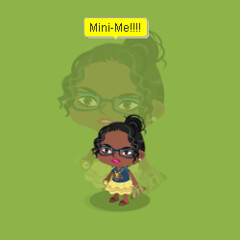
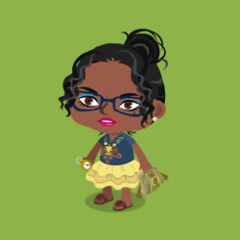
/min
Transforms your avatar into a tiny "Mini-me" version


/suwaru
Puts your avatar in a sitting position ("suwaru" means ...)


/tatsu
Puts your avatar in a standing position ("tatsu" means ...)


/nem
Puts your avatars to sleep ("nem" means ...)

Thursday, April 1, 2010

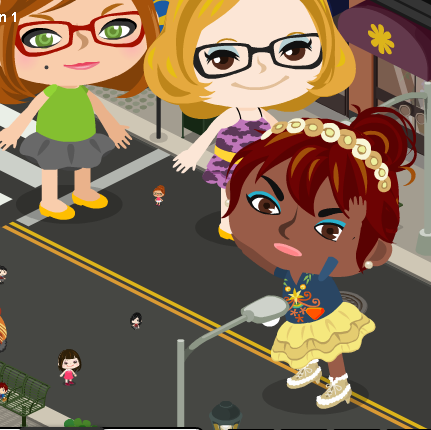
Attack of the 50 Foot Picos

This morning the official blog announced that the compartment-sized user rooms would be bigger.

As with so many things in life, it's all about perspective.

Those who log on today will find that their rooms look larger because they are smaller. April Fools! Very clever.

Type /min repeatedly in your chat line and you will become mite-sized.

Type /big repeatedly in your chat line and you will become Godzilla-sized.

Sunday, March 28, 2010

How-to: a simple guide to Ameba Pico commands

Over the last couple of days exploring in Pico, I have seen people doing gestures; creating talk bubbles with little kisses and hearts ... and for the life of me I couldn't figure out how.

Thanks to my curiosity, the power of the Google search engine and Google Translate tool I've found out how to do them all!


Type the following commands into your chat to get some funky results ...

Icons:


/angry
Creates a talk bubble with an animated throbbing "x" over your head


/conf
Creates a talk bubble with an animated squiggle over your head


/fun
Creates a talk bubble with animated music note icons over your head


/heart
Creates a talk bubble with animated heart icons over your head


/hungry
Creates a talk bubble with a knife and fork icon over your head


/insp
Creates a talk bubble with an animated light bulb icon over your head


/kiss
Creates a talk bubble with animated kissy lips icon over your head


/nekohebi
Creates a talk bubble with an animated cat icon over your head


/panda
Creates a talk bubble with a panda's head icon over your head


/sad
Creates a talk bubble with an animated tear drop icon over your head


/thumb
Creates a talk bubble with thumbs up icon over your head


/zoomin
Enlarges the size of the Pico screen (same as "+" button)

/zoomout
Reduces the interface (same as "-" button)